
Help
How to use Seatsy
Short videos and step-by-step screens for everything in the app. Start with the five steps below, or search for what you need.
Nothing found. Try another word, or write to us at info@pipsapps.com.
Quick start: your first plan in five steps
The first time you open Seatsy, you see a sample event called Autumn Gala. Play with it as much as you like: drag guests around and open every menu. When you’re ready:
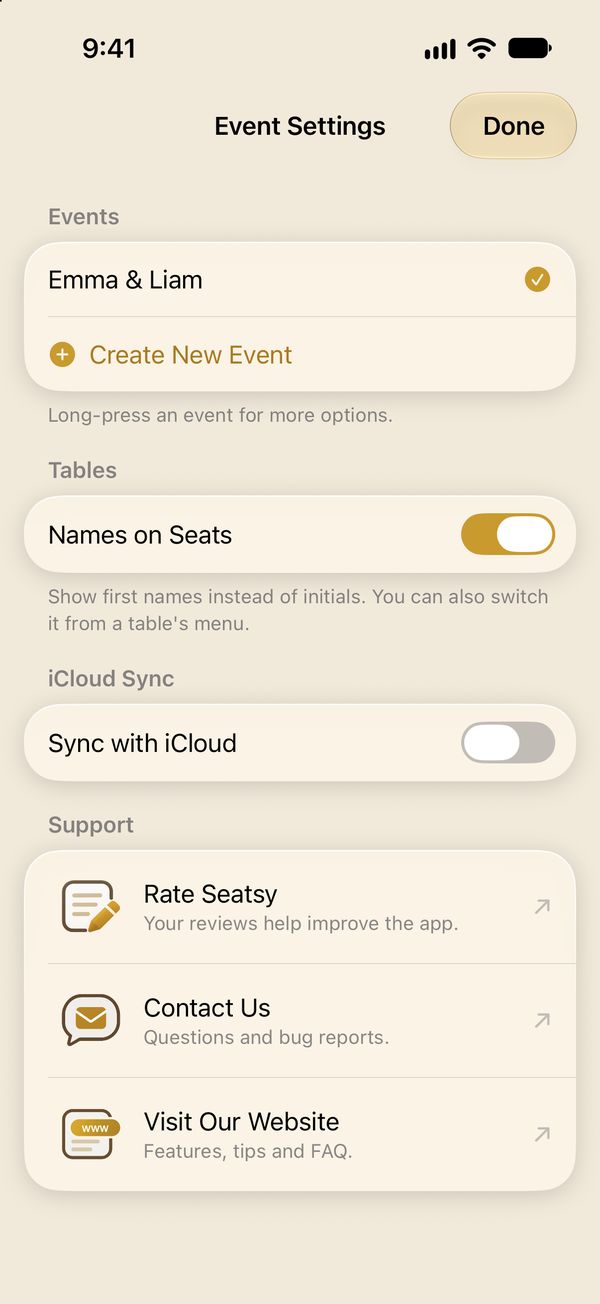
- Make your event Open Event Settings (on iPhone, tap the event name at the top) and tap Create New Event. On the free plan, it takes the place of the sample. Events →
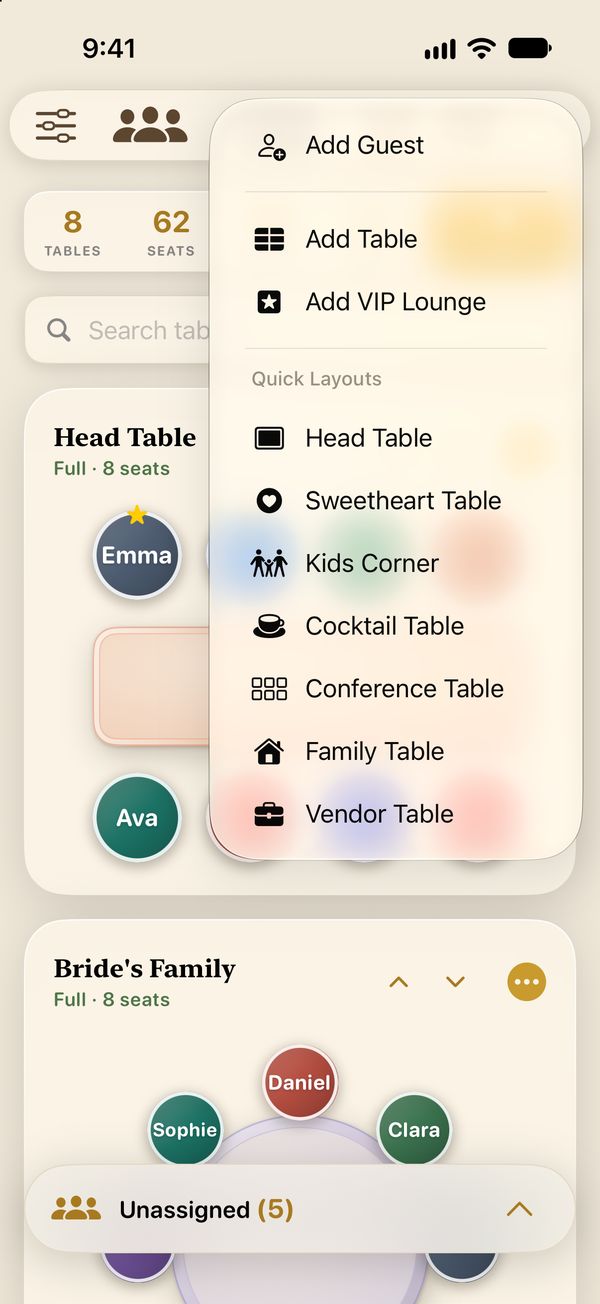
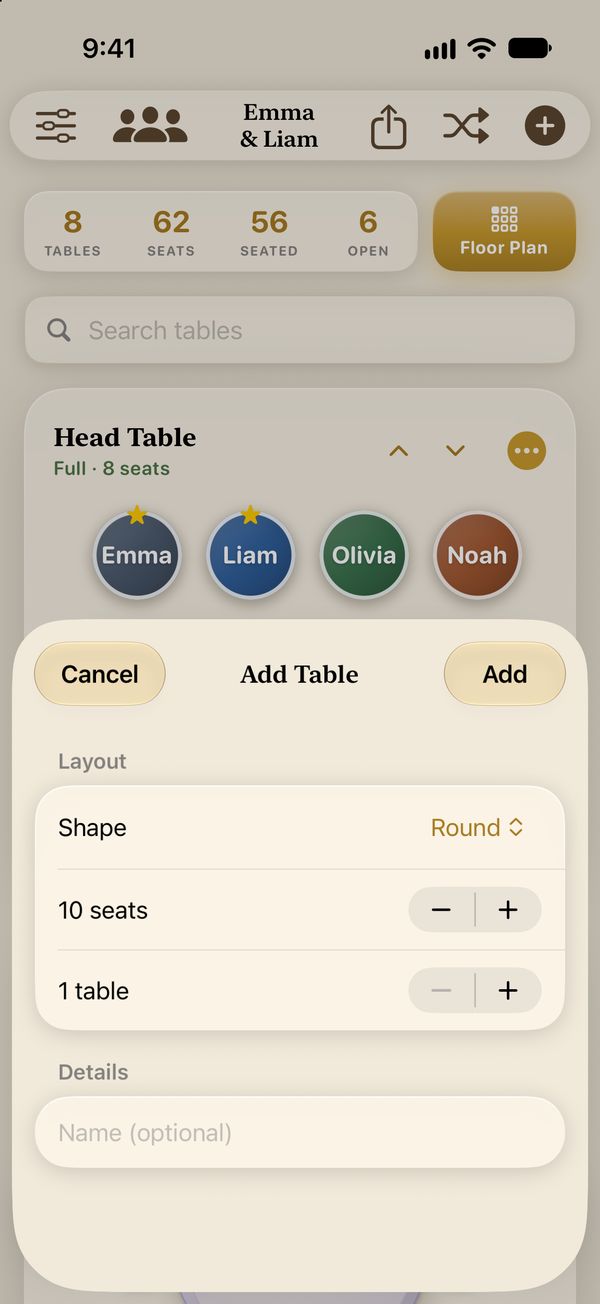
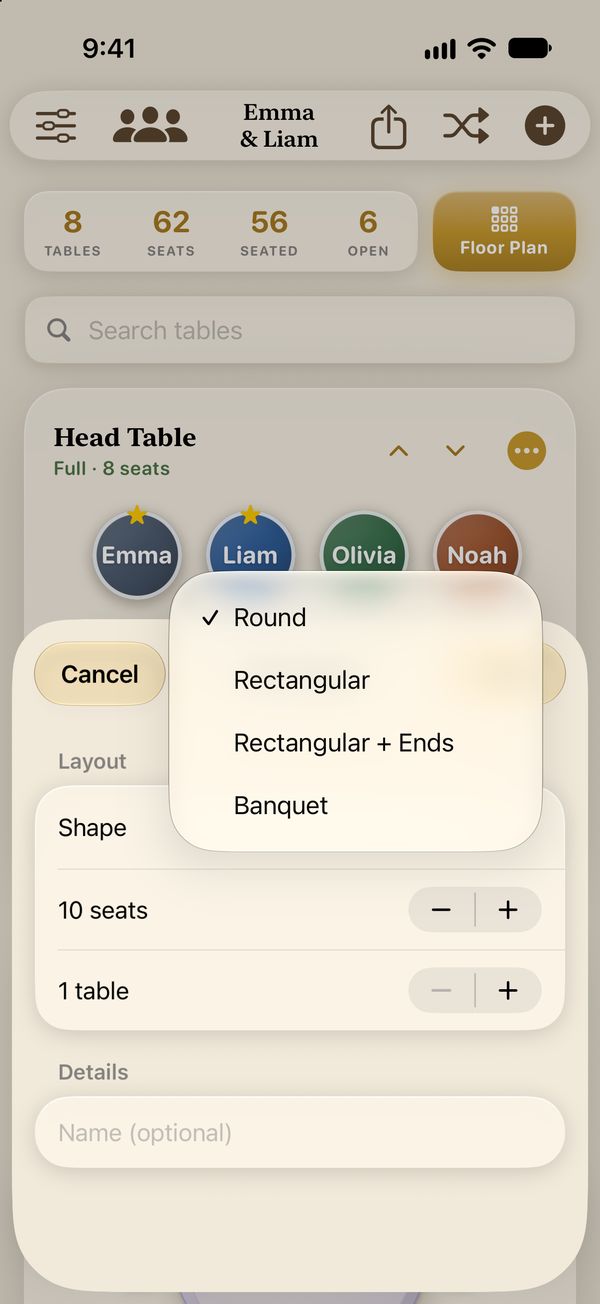
- Add tables Tap +, then Add Table, or pick a ready-made one under Quick Layouts. Tables →
- Add guests Type them in, or import your list from Excel, a CSV file or a copied column of names. Import →
- Seat everyone Drag guests onto seats, tap an empty seat to choose someone, or let Fill Open Seats do it. Seating →
- Print and share Tap Print & Share for a seating poster, table lists, place cards and escort cards. Printing →
Taps and gestures
Most of Seatsy works with a few simple moves:
The main screen
Everything starts from the bar at the top. Tap a number to see what each button does.

- Event Settings: your events, iCloud sync and other options.
- Guests: the full guest list, import and export.
- Event name: also opens Event Settings.
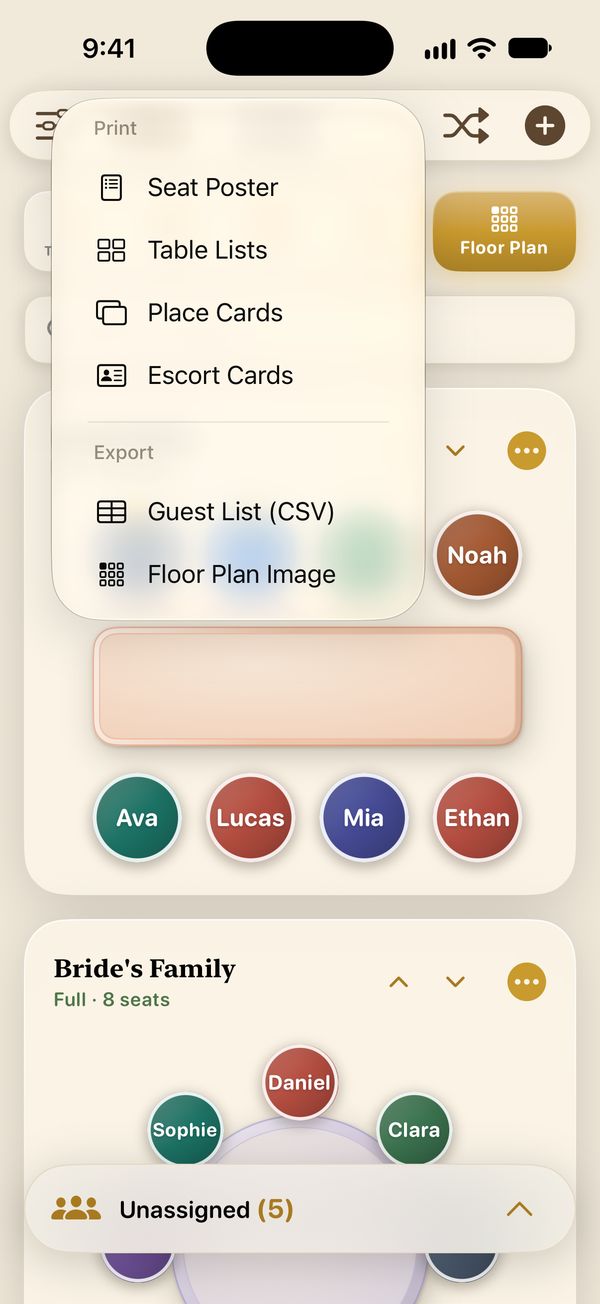
- Print & Share: printouts, the guest list as CSV and the floor plan image.
- Seating actions: Fill Open Seats, Clear All Seats, Shuffle and VIPs.
- Add: a guest, a table, a VIP Lounge or a ready-made table.
On iPad and Mac, the same buttons sit in the top bar: Event Settings and Guests on the left, the rest on the right. Below the bar:

- Counters: how many tables and seats you have, how many guests are seated and how many seats are open.
- Floor Plan opens the room layout.
- Search tables appears once you have six or more tables.
- The table’s name and how full it is.
- ⌃ ⌄ and ••• move the table up or down the list, or open its menu.
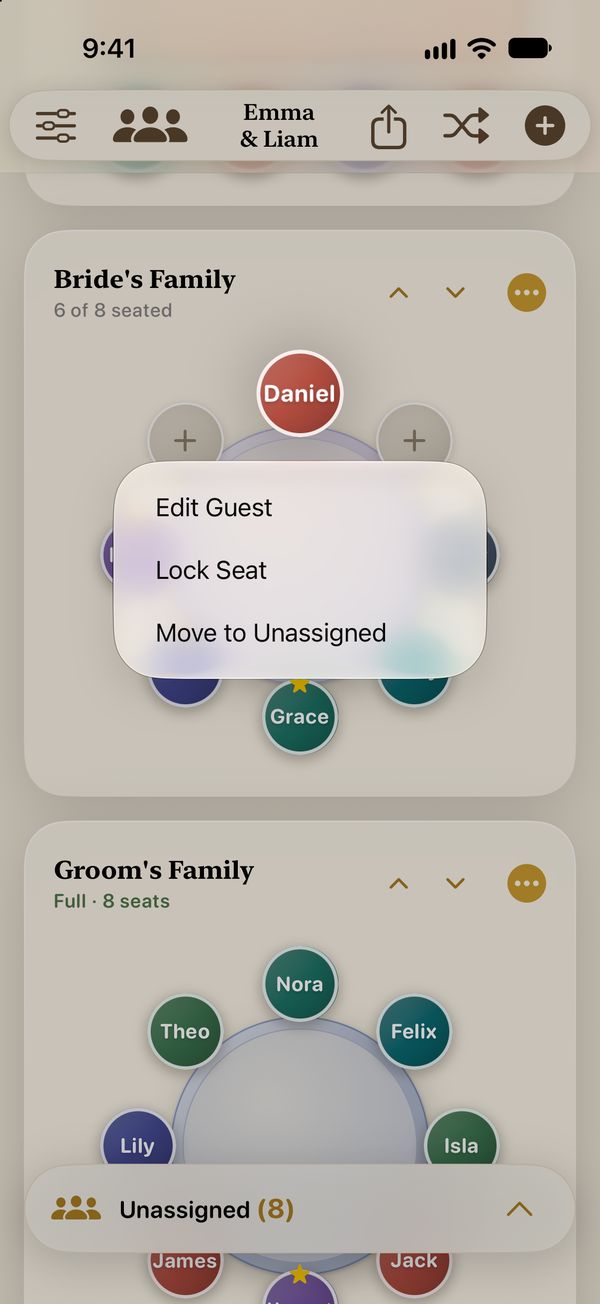
- Seats: tap an empty one to seat someone, tap a guest to edit them, touch and hold for more.
- Unassigned lists everyone without a seat. Tap it to open or close it.
Tables
Add tables
Edit, move and delete
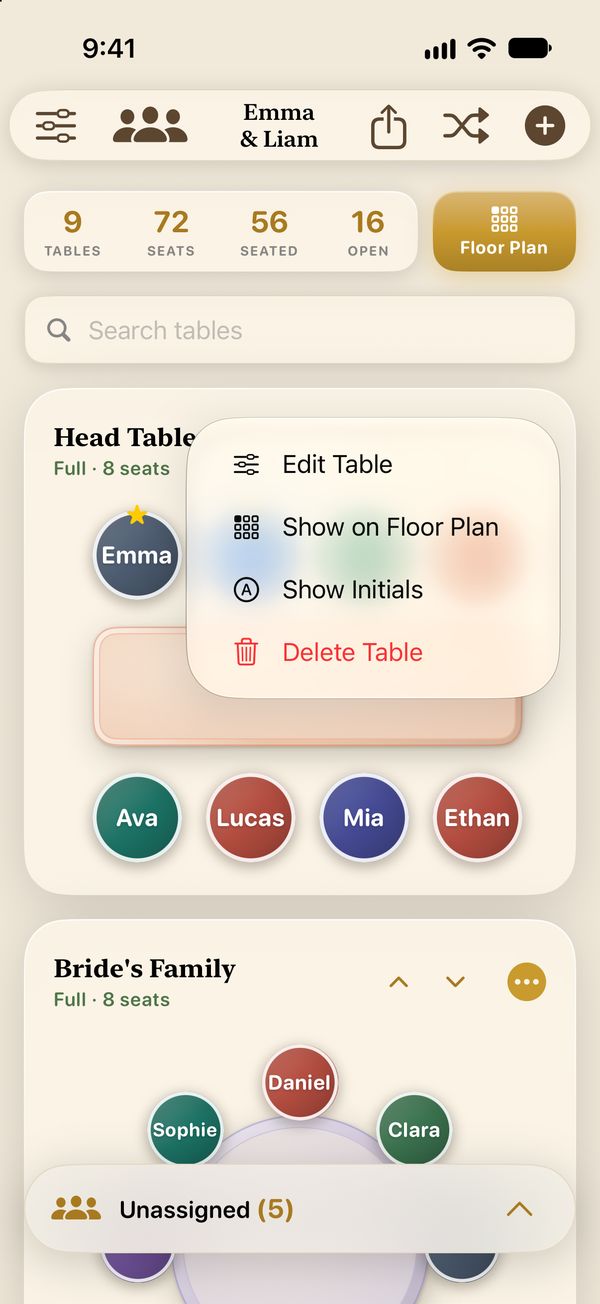
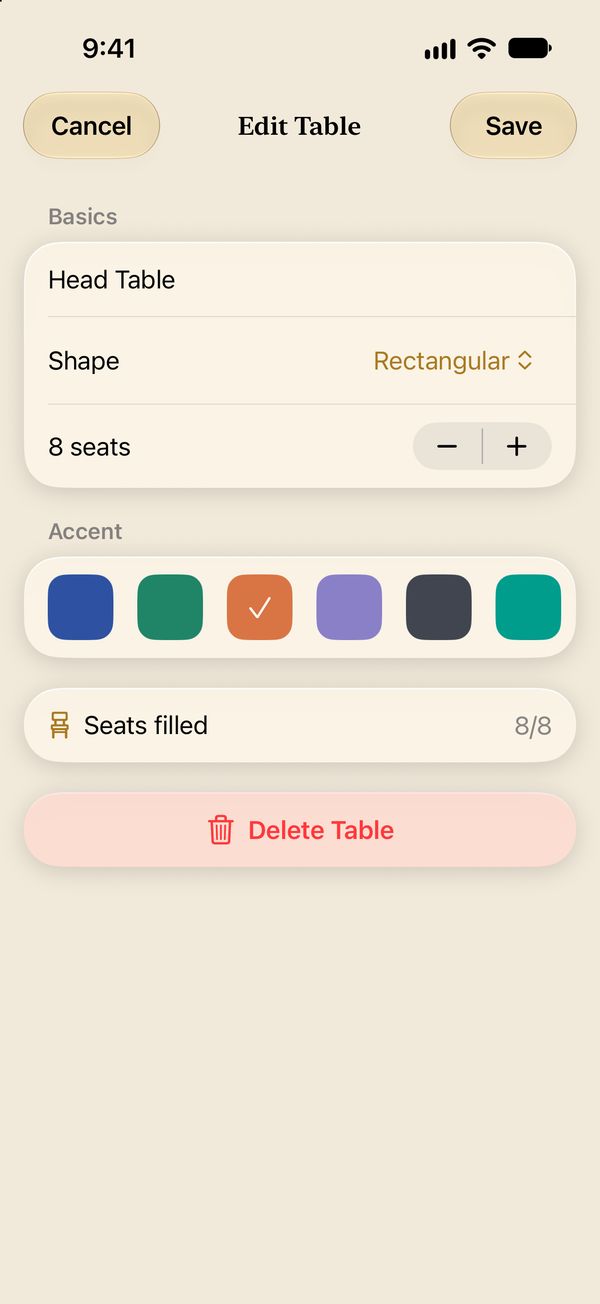
The ⌃ and ⌄ arrows next to ••• move a table up or down the list.
Guests
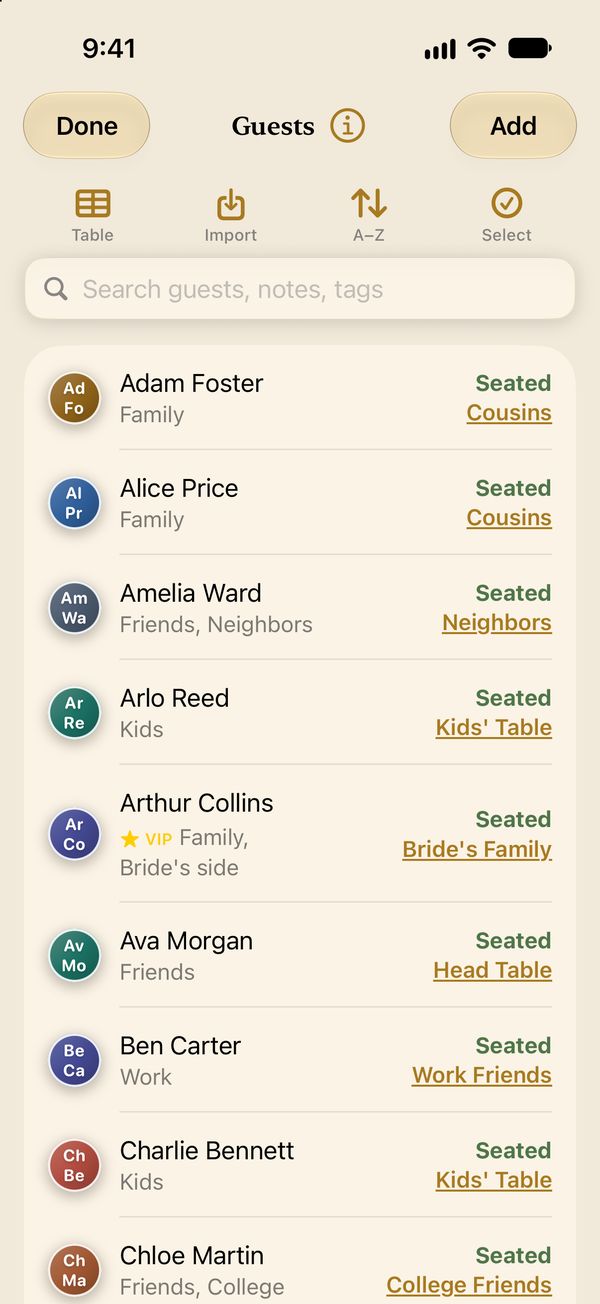
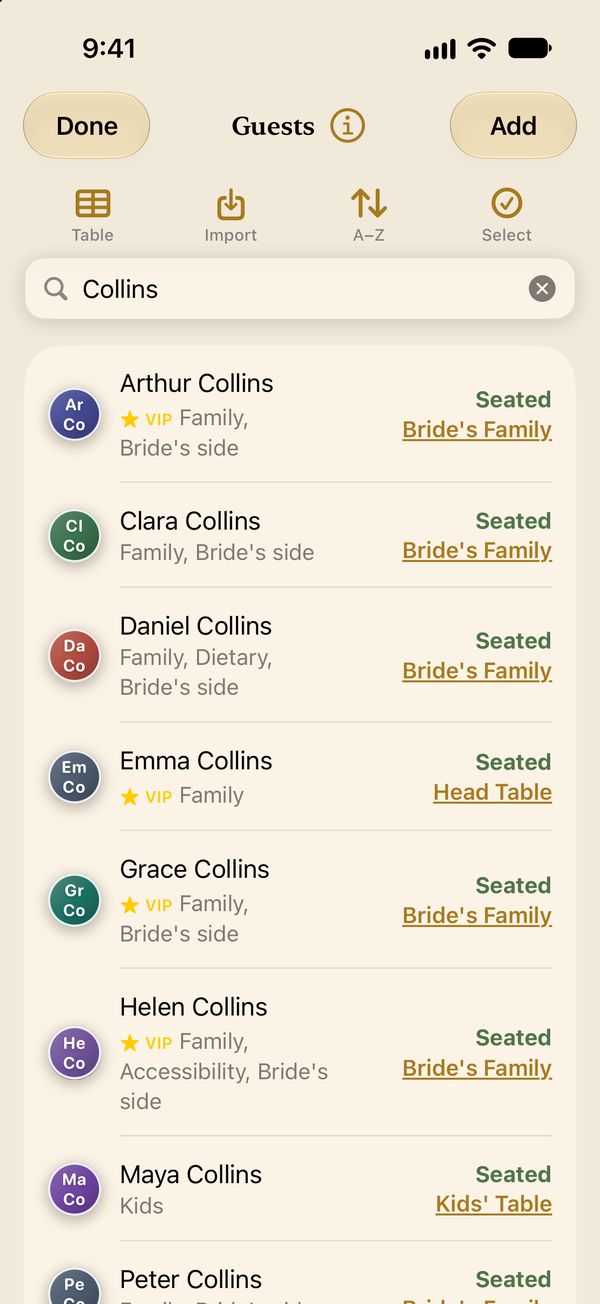
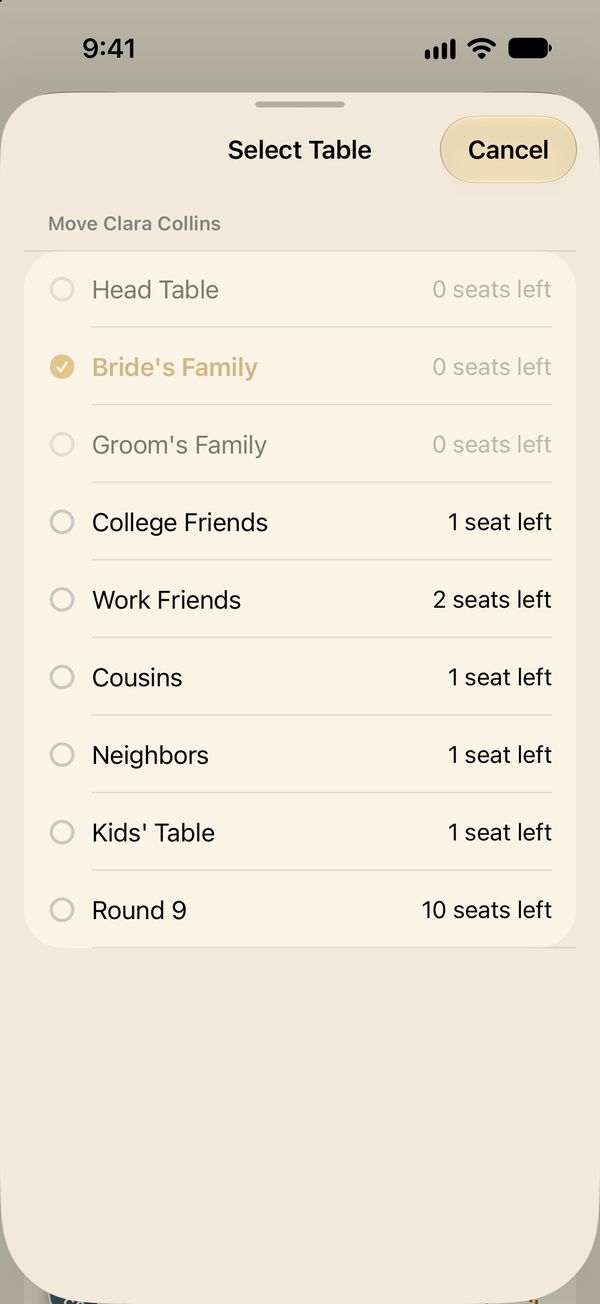
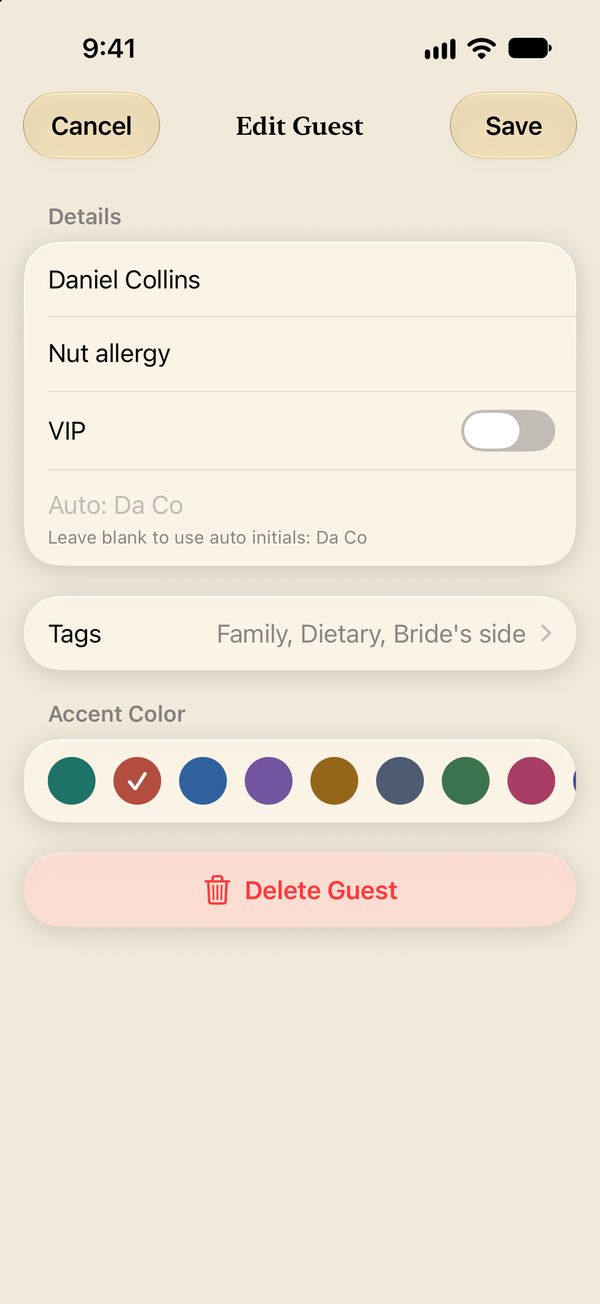
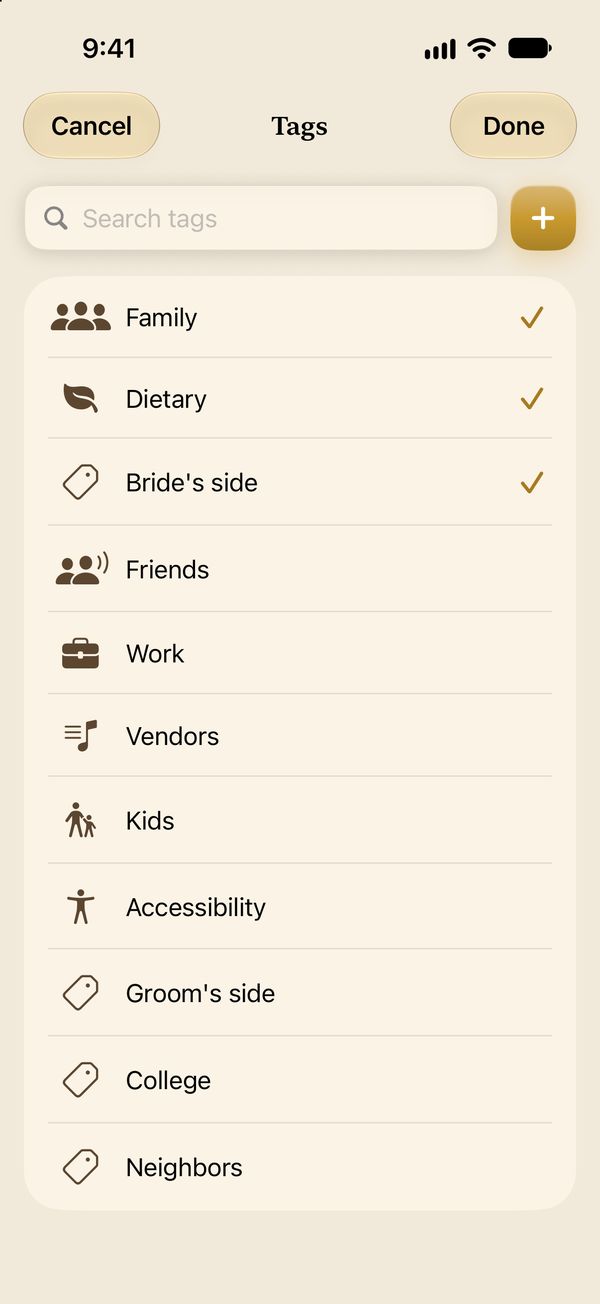
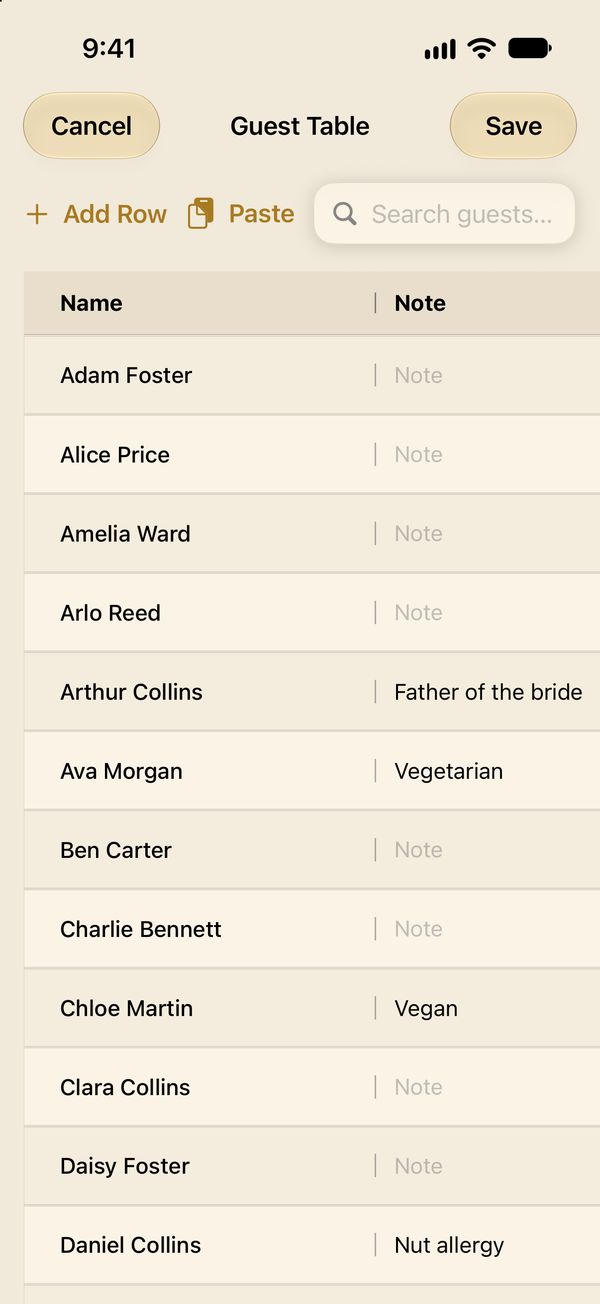
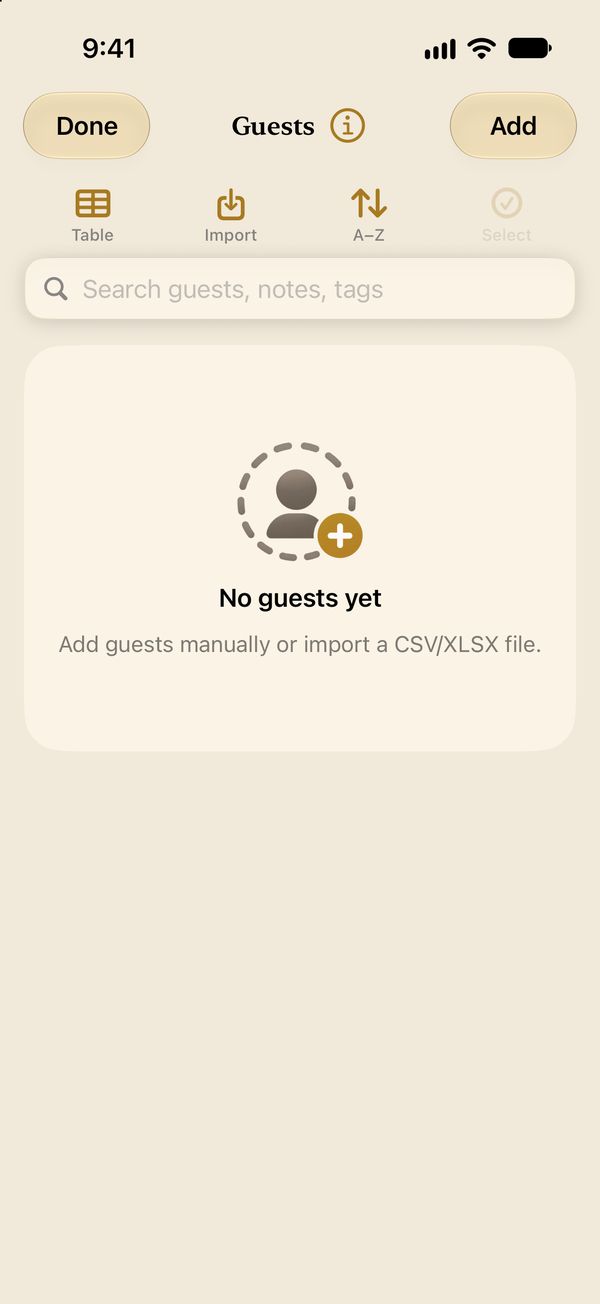
Tap the Guests button (three people) in the top bar to see everyone, with their tags and where they sit. Add a guest with Add here, or with + › Add Guest on the main screen.
Import a guest list
Already have your list in a spreadsheet? Bring it in with a few taps, even with the tables already decided.
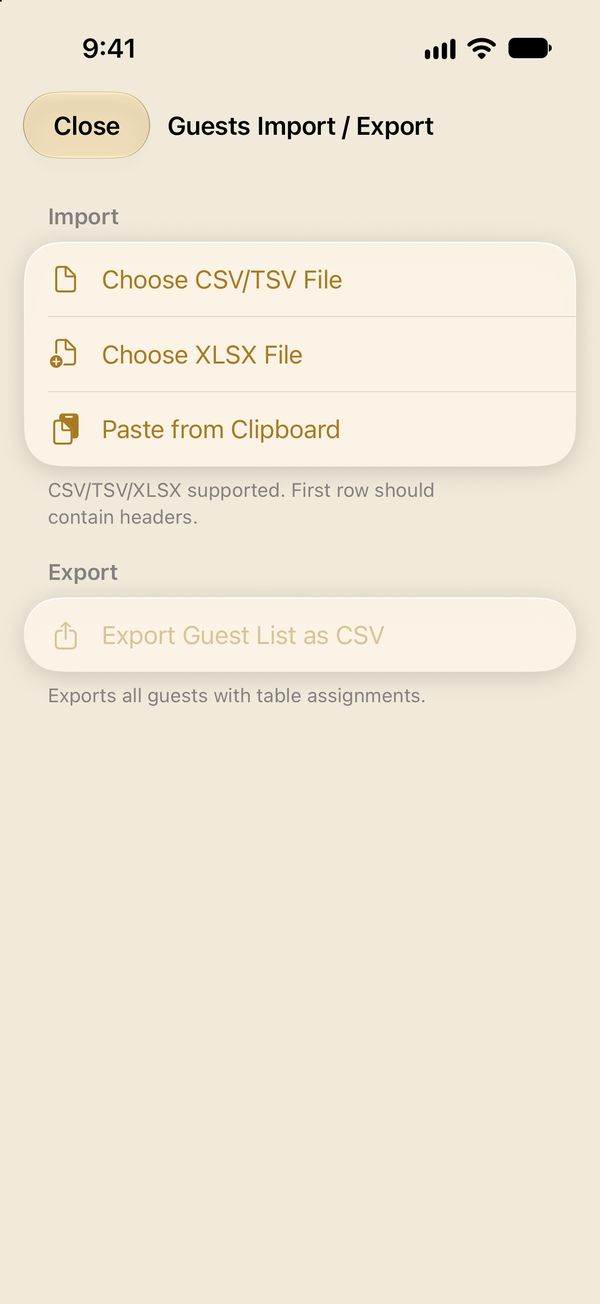
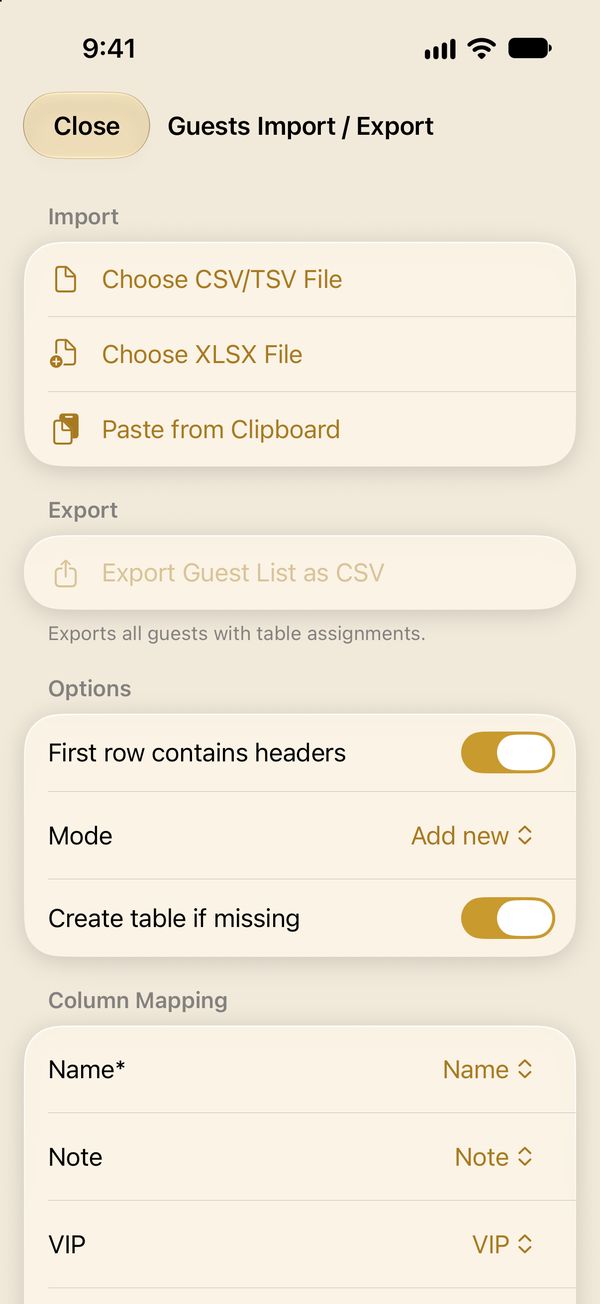
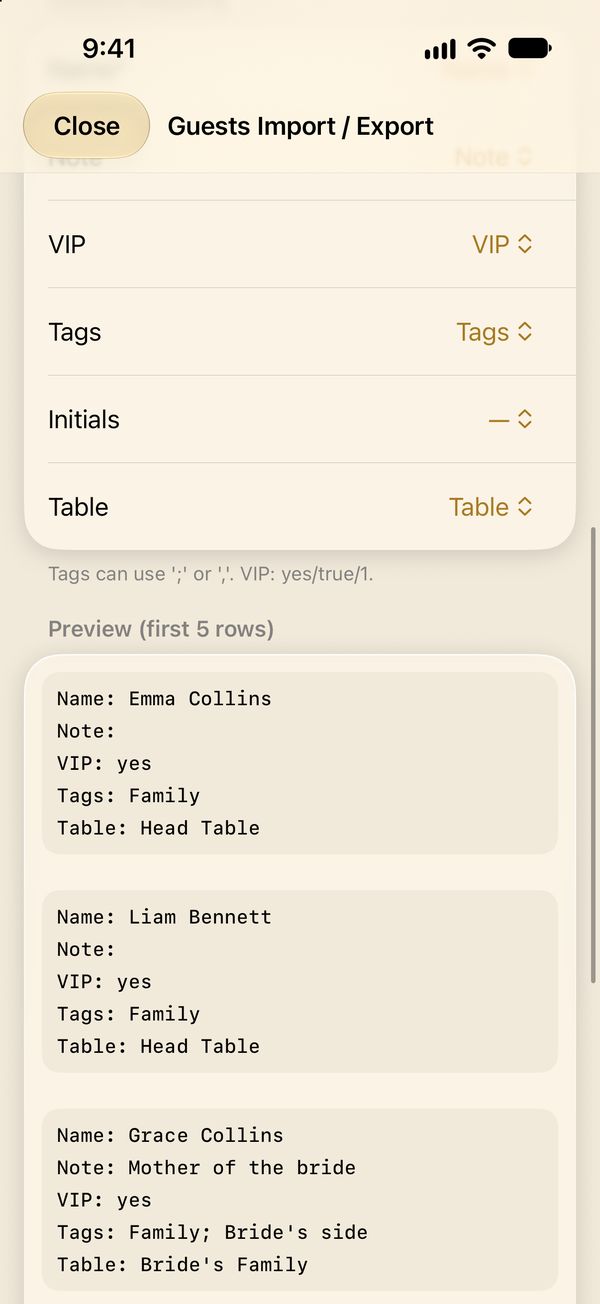
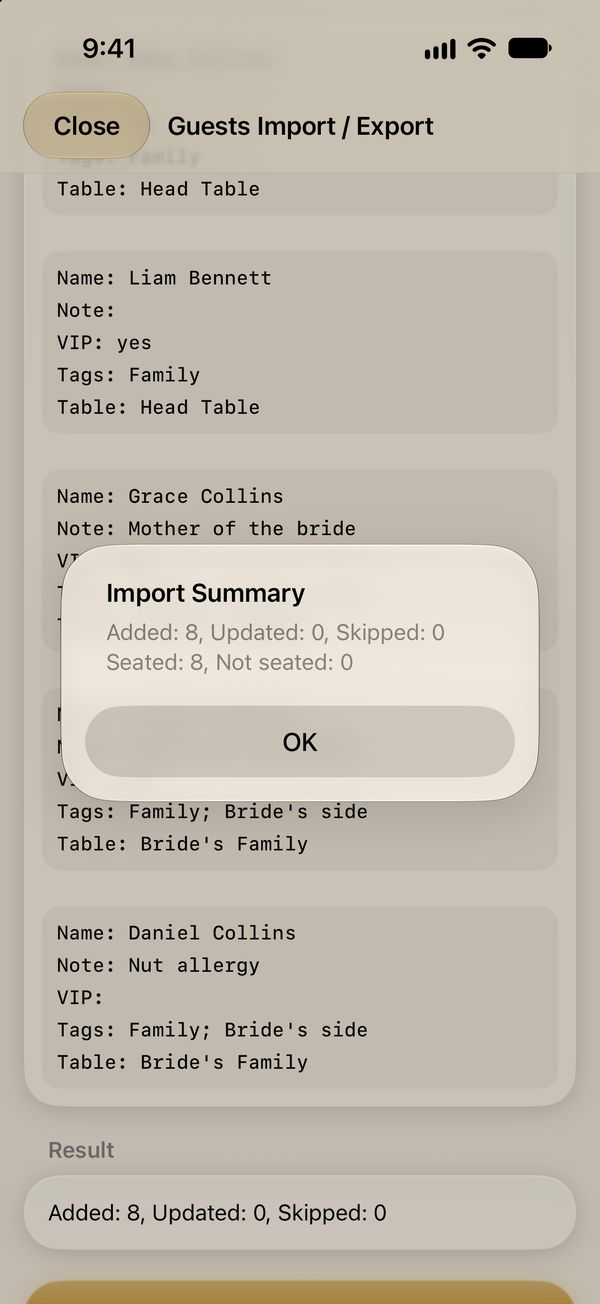
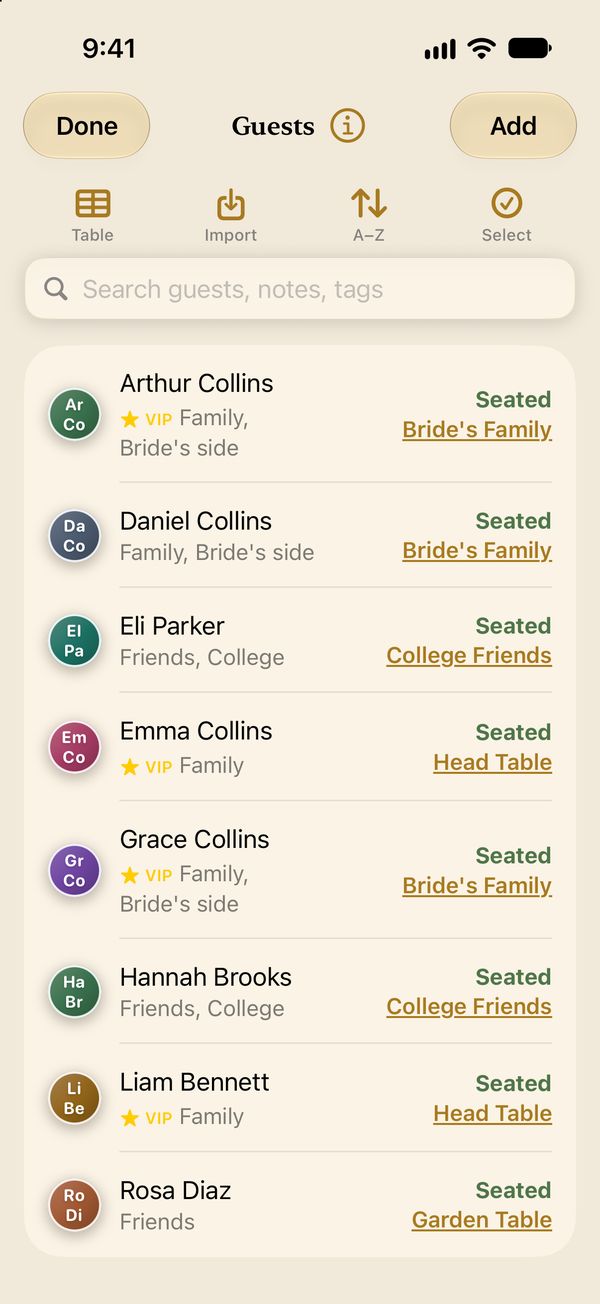
How your spreadsheet can look
Only the name is required. Columns titled like these are found on their own:
| Name | Note | VIP | Tags | Table |
|---|---|---|---|---|
| Emma Collins | yes | Family | Head Table | |
| Grace Collins | Mother of the bride | yes | Family; Bride’s side | Bride’s Family |
| Eli Parker | Vegetarian | Friends; College | College Friends | |
| Rosa Diaz | Friends | Garden Table |
Download the template (CSV) Opens in Excel, Numbers and Google Sheets.
- Mode: Add new adds every row as a new guest. Update existing updates guests whose names already match and skips the rest. Replace all removes the current list first.
- Tags: separate several with ; or , (for example Family; Kids). VIP: yes, true or 1.
- Next time, Seatsy remembers how you matched the columns.
CSV with semicolons? Some spreadsheet apps save CSV files with semicolons between columns, and everything then lands in one column. Import the .xlsx file instead, or copy the cells and use Paste from Clipboard.
To get the list out again, use Export Guest List as CSV on the same screen, or Guest List (CSV) in Print & Share. The file has each guest’s name, table, VIP, note and tags.
Seat your guests
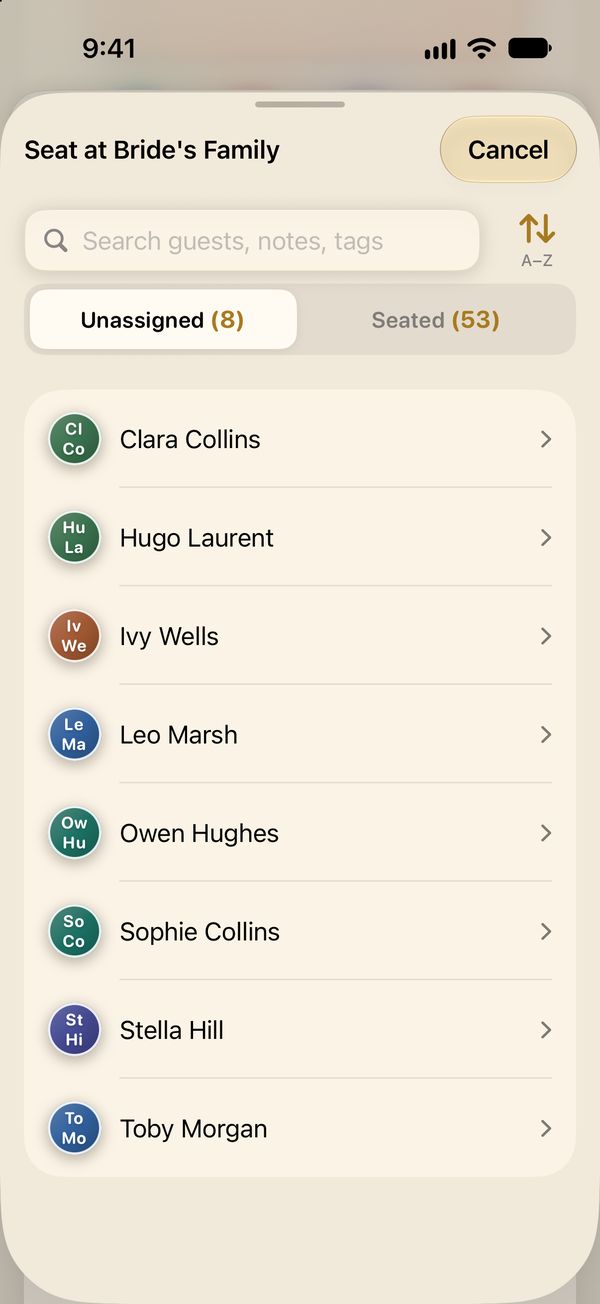
Drag from Unassigned. Open the Unassigned panel at the bottom, touch and hold a guest, and drag them onto an empty seat.
Swap two guests. Drag a seated guest onto someone else, and the two change places.
The video plays on its own. Tap a step under it to jump there.
More ways to seat and move guests
Fill, shuffle and VIPs
The seating actions button (crossed arrows) in the top bar seats many guests at once. Before anything changes, Seatsy tells you how many guests will move.
- Fill Open Seats: seats everyone in Unassigned in the empty seats.
- Clear All Seats: moves everyone back to Unassigned.
- Shuffle Movable Guests: gives everyone a random seat.
- Distribute VIPs Evenly: spreads your VIPs across the tables.
None of these touch locked seats. In the video, 37 waiting guests are seated, and each group (College, Work, Family and so on) gets a table of its own.
Try it: how Fill Open Seats keeps groups together
Guests with exactly the same tags are a group. Bigger groups go first, each to one table where it fits, next to guests who share a tag. Guests without tags take the seats that are left.
9 guests are waiting. Table 1 has 4 seats, Table 2 has 6.
Tip: Dietary and Accessibility describe needs, not groups, so Fill Open Seats doesn’t use them to sit people together.
Lock and reserve seats
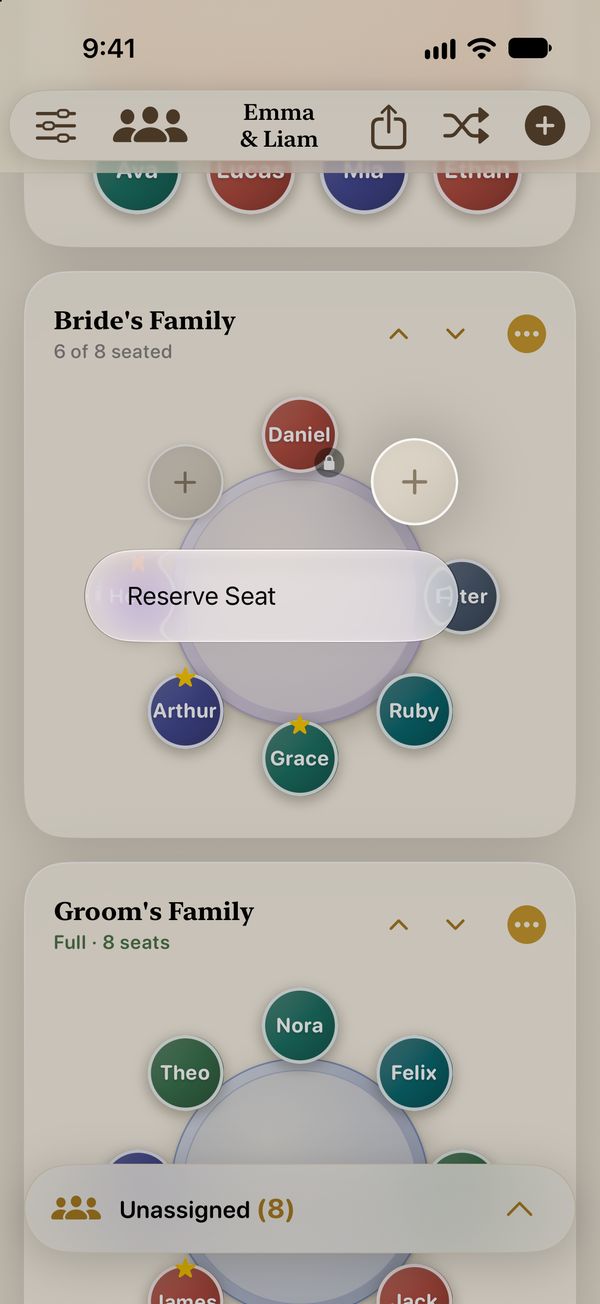
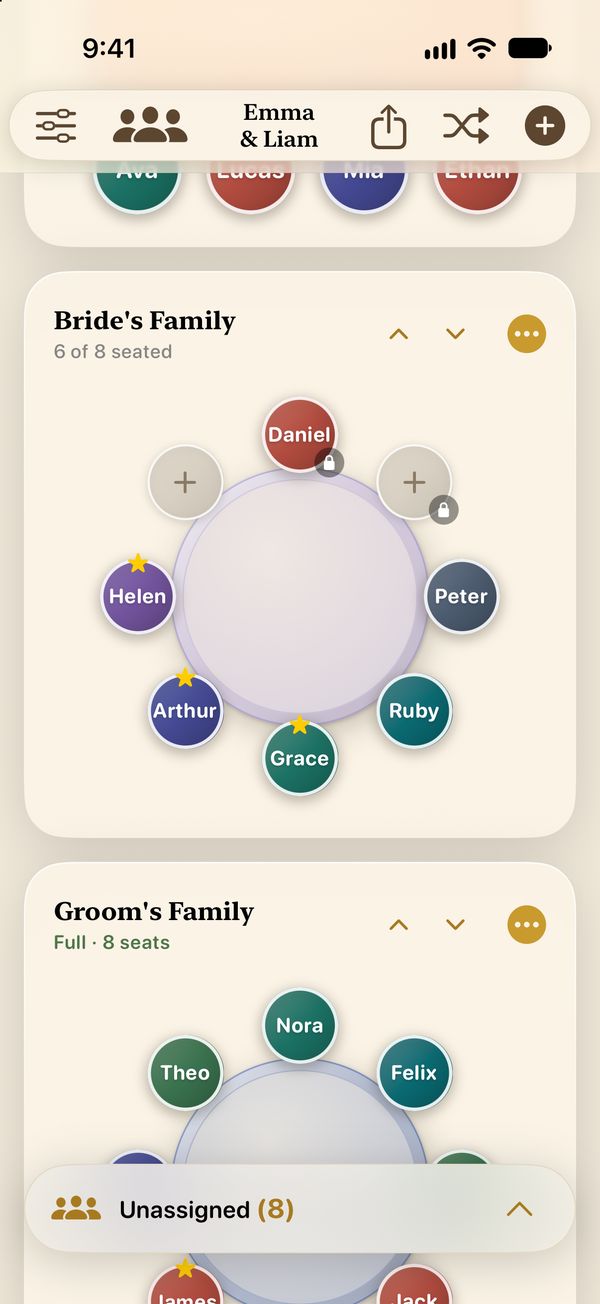
The number of locked seats also shows under the counters at the top of the main screen.
Tags, VIPs and notes
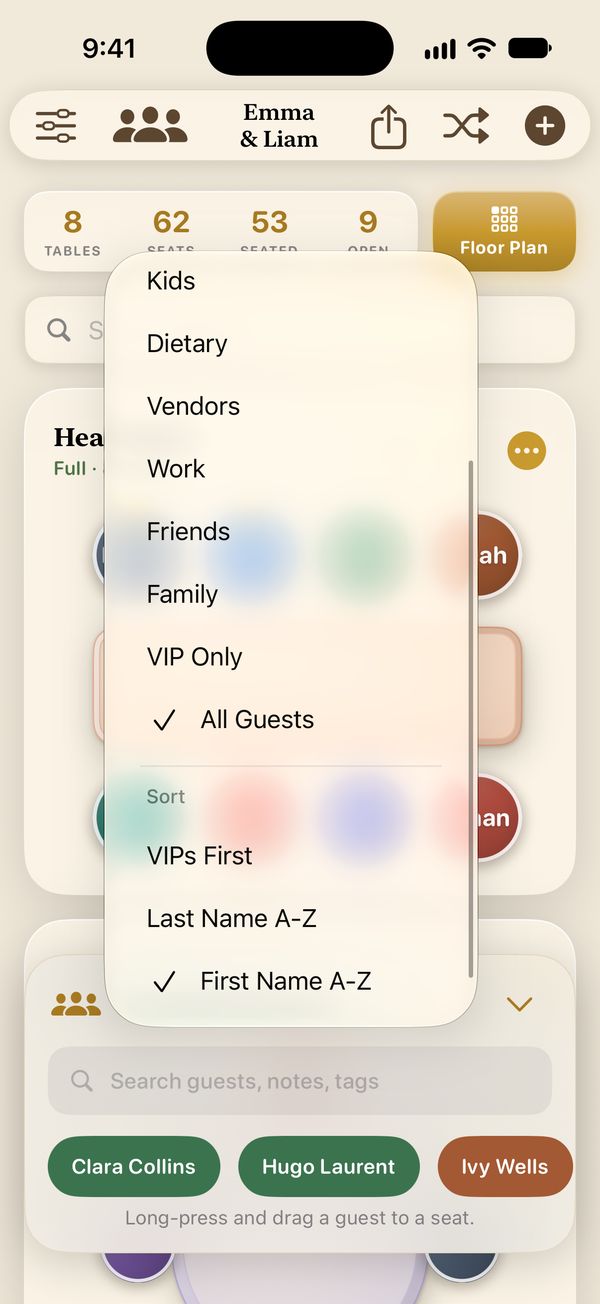
Tags group your guests. Seatsy comes with Family, Friends, Work, Vendors, Kids, Dietary and Accessibility, and you can make your own, such as “Bride’s side” or “College”. Add tags to a guest in their details, under Tags.
- Fill Open Seats keeps guests with the same tags together.
- Search finds guests by tag, and the Unassigned panel can show one tag at a time.
- Deleting one of your own tags removes it from guests in all your events.
VIPs get a gold star on their seat. Distribute VIPs Evenly spreads them across tables, and the Unassigned panel can list VIPs first or show only VIPs.
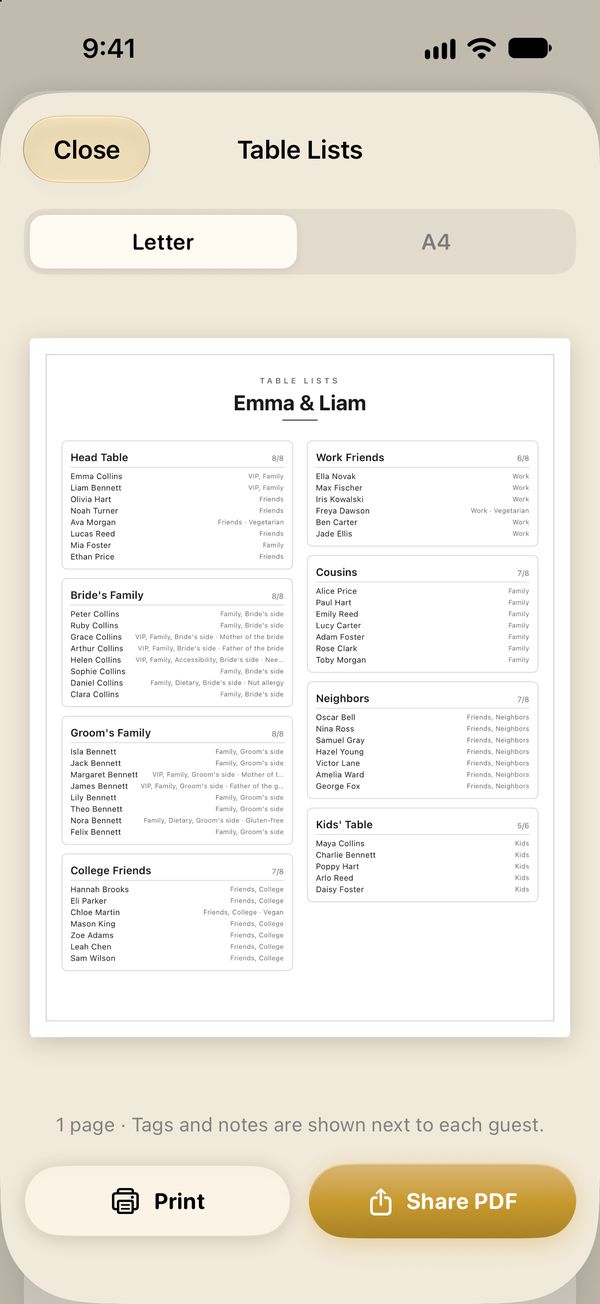
Notes are for anything else: “vegetarian”, “nut allergy”, “needs a seat near the door”. Search looks in notes too, and Table Lists print them next to each guest.
Floor plan
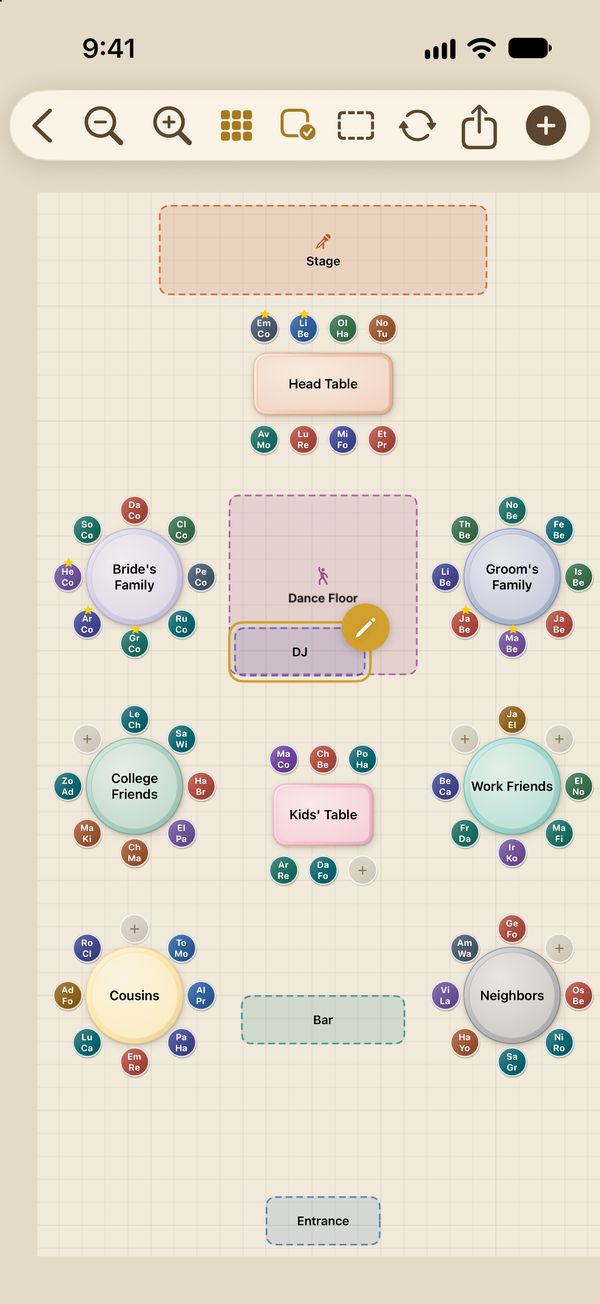
Tap the gold Floor Plan button on the main screen, or choose Show on Floor Plan from a table’s ••• menu. The plan shows every table with its guests’ initials. You seat guests on the main screen; the plan is for arranging the room.

- Back to your tables.
- Zoom out.
- Zoom in. You can also pinch.
- Show Grid.
- Snap to Grid: tables and areas jump to the grid as you move them.
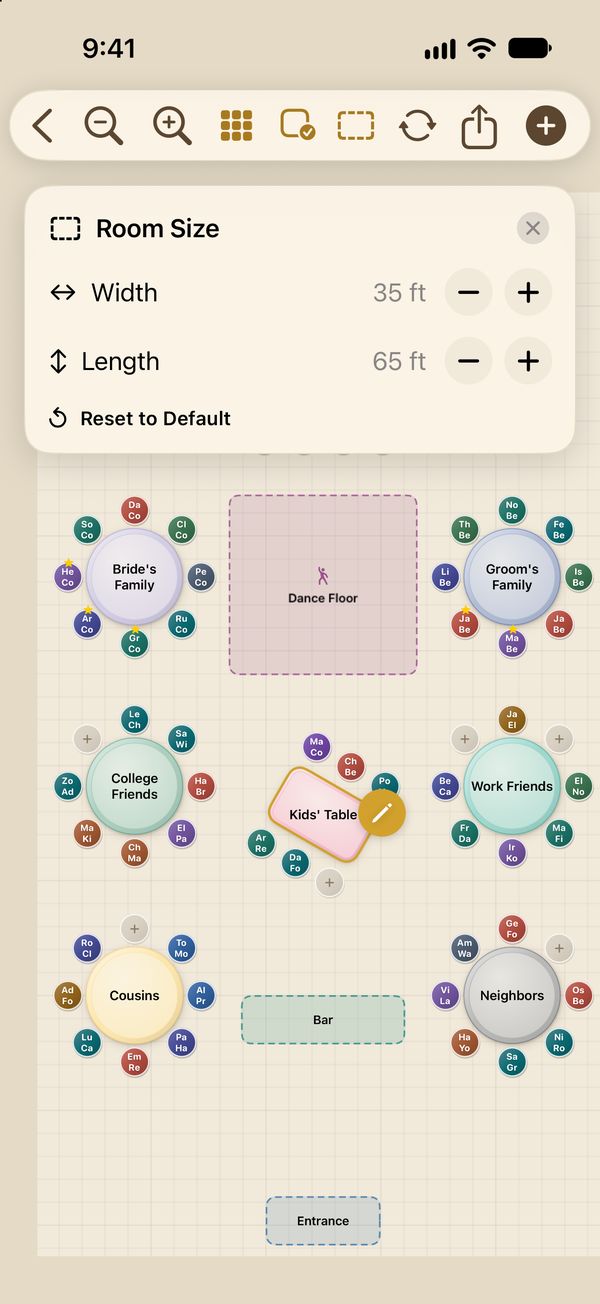
- Room Size: the width and length of the room.
- Rotate the selected table.
- Share the plan as an image.
- Add a table, a VIP Lounge, a room area or a ready-made table.
Move, select and rotate
- Drag a table to move it. Near a wall or the middle of the room it snaps into line, and a guide shows it.
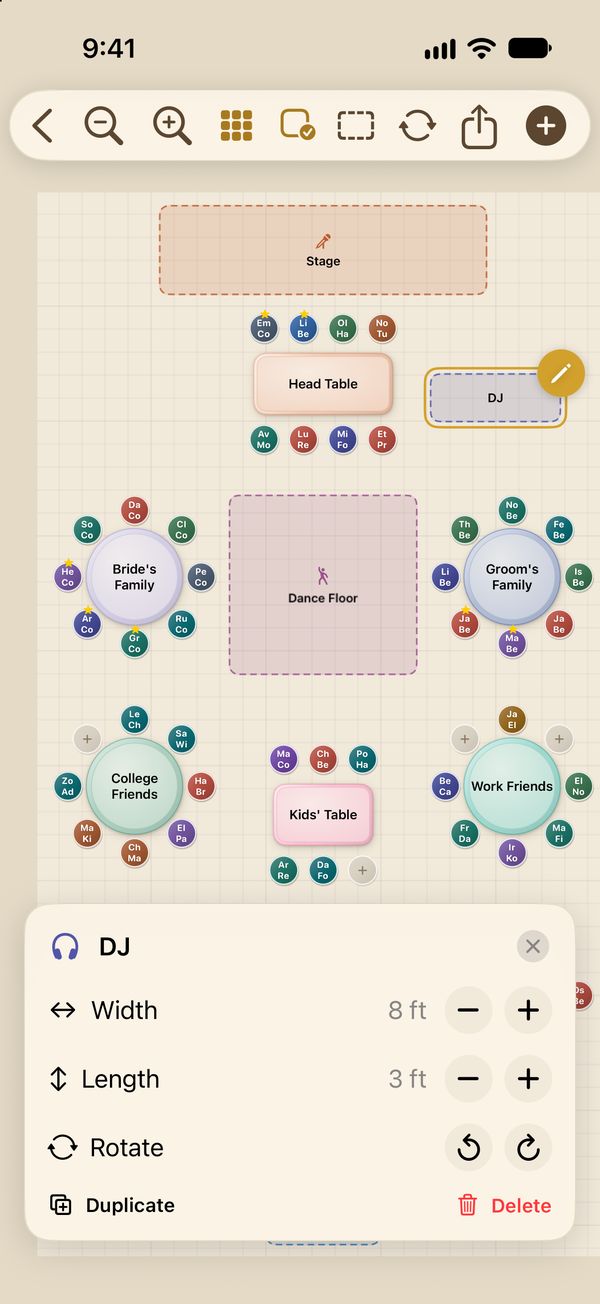
- An area (dance floor, bar and so on) moves once it’s selected: tap it first, then drag. Until then, a drag across a big area scrolls the room.
- Tap a table or an area to select it, then tap the gold ✎ to edit it.
- With a table selected, tap Rotate to turn it 15° at a time. Reset puts it back.
- Tap an empty spot to clear the selection.
Room areas
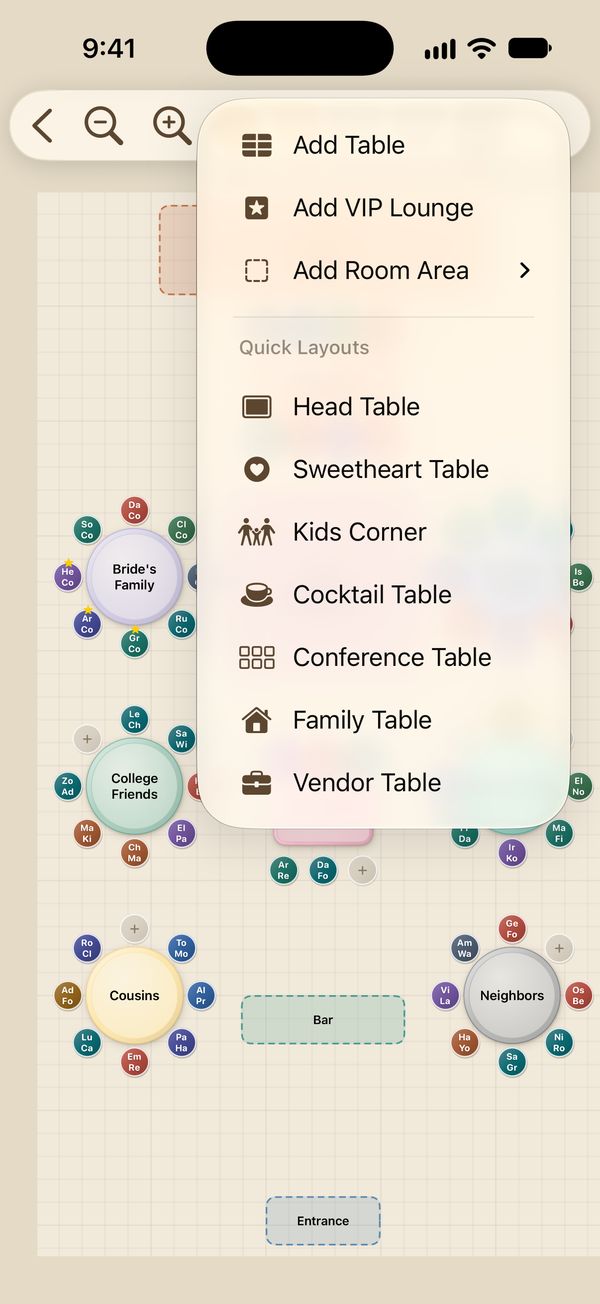
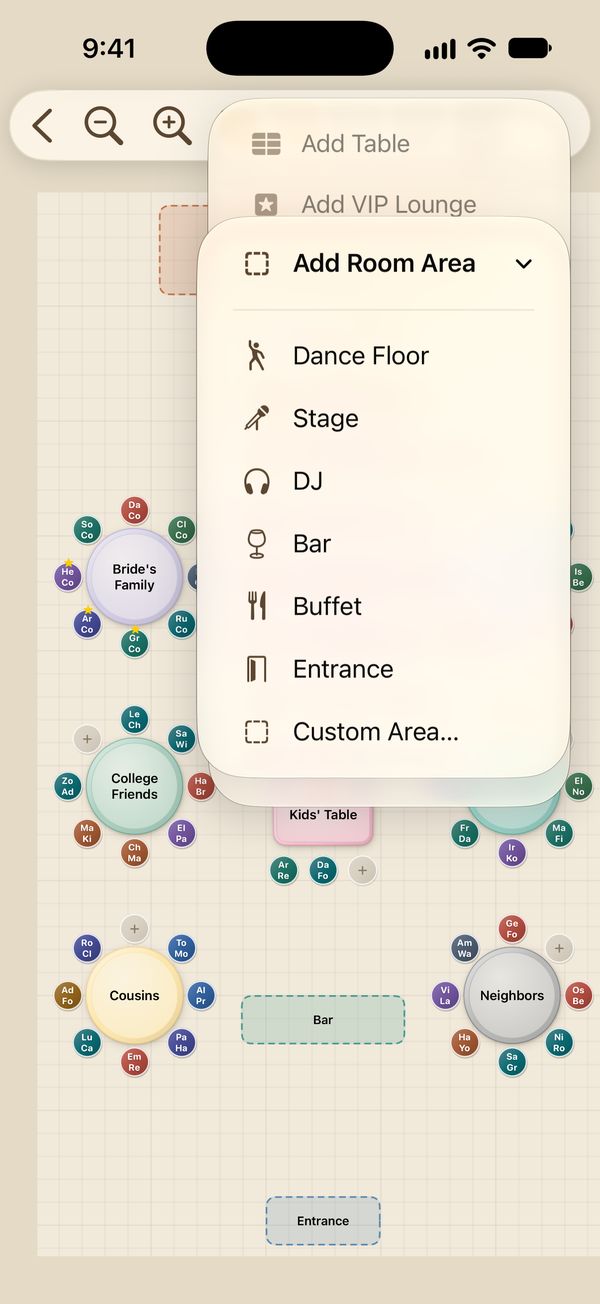
Room size
Tap the Room Size button and set the width and length. Seatsy uses meters or feet, following your device’s region settings. Reset to Default brings back the starting size.
Pinch, or use the zoom buttons, to see the whole room or a single table up close.
Print and share
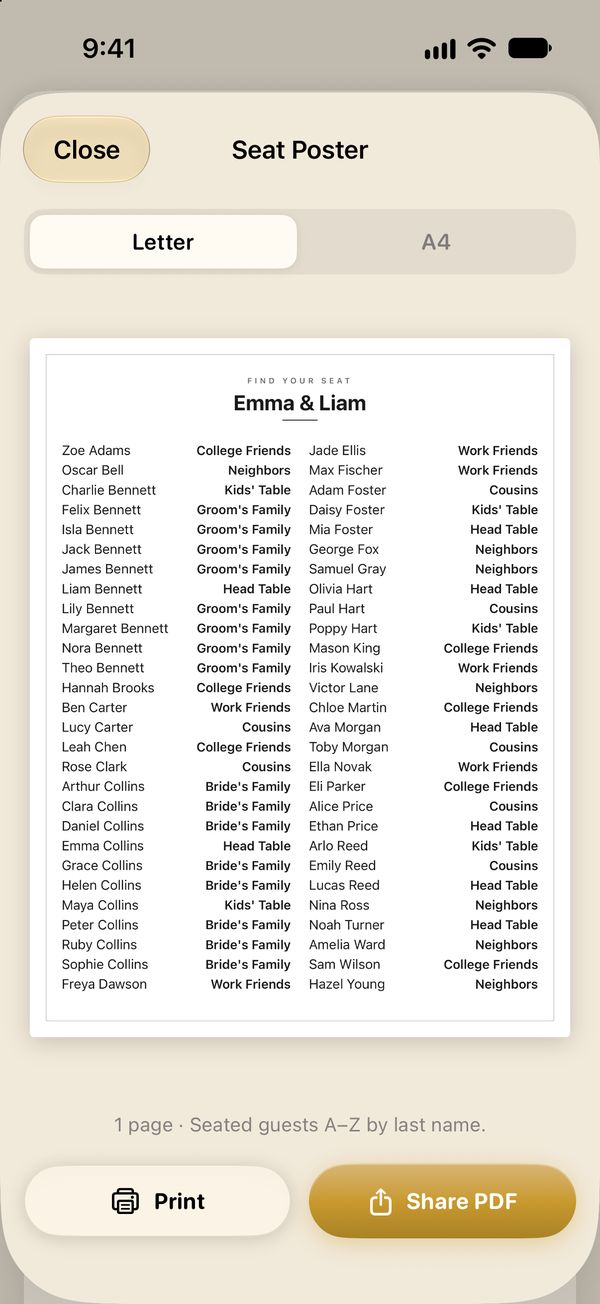
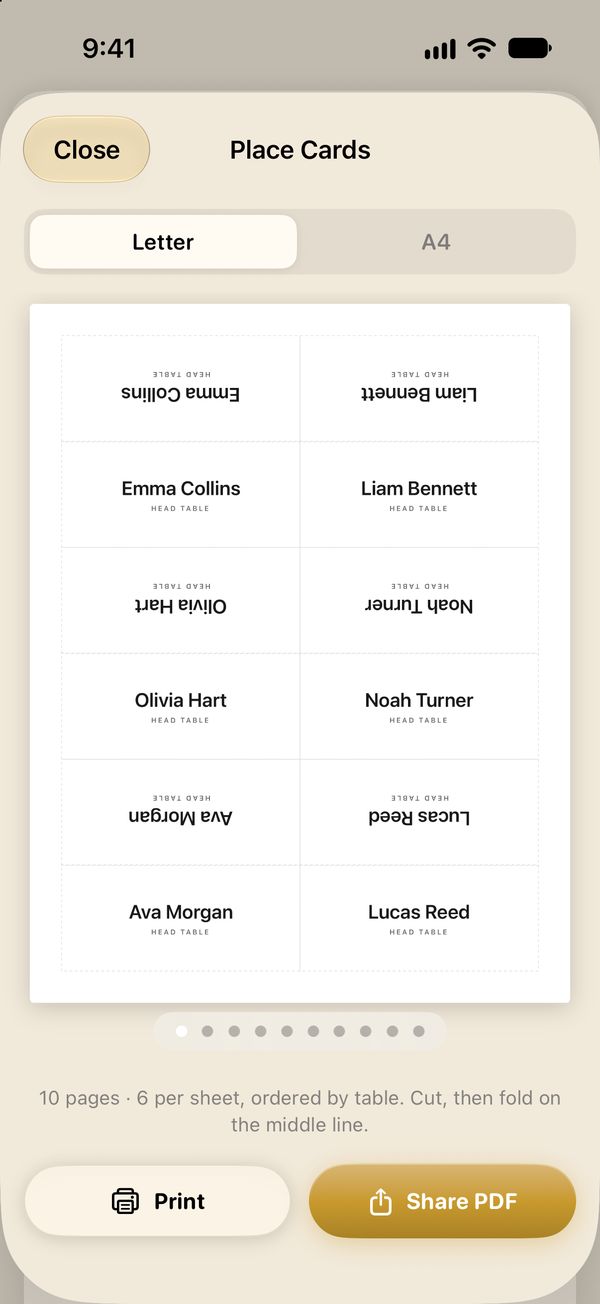
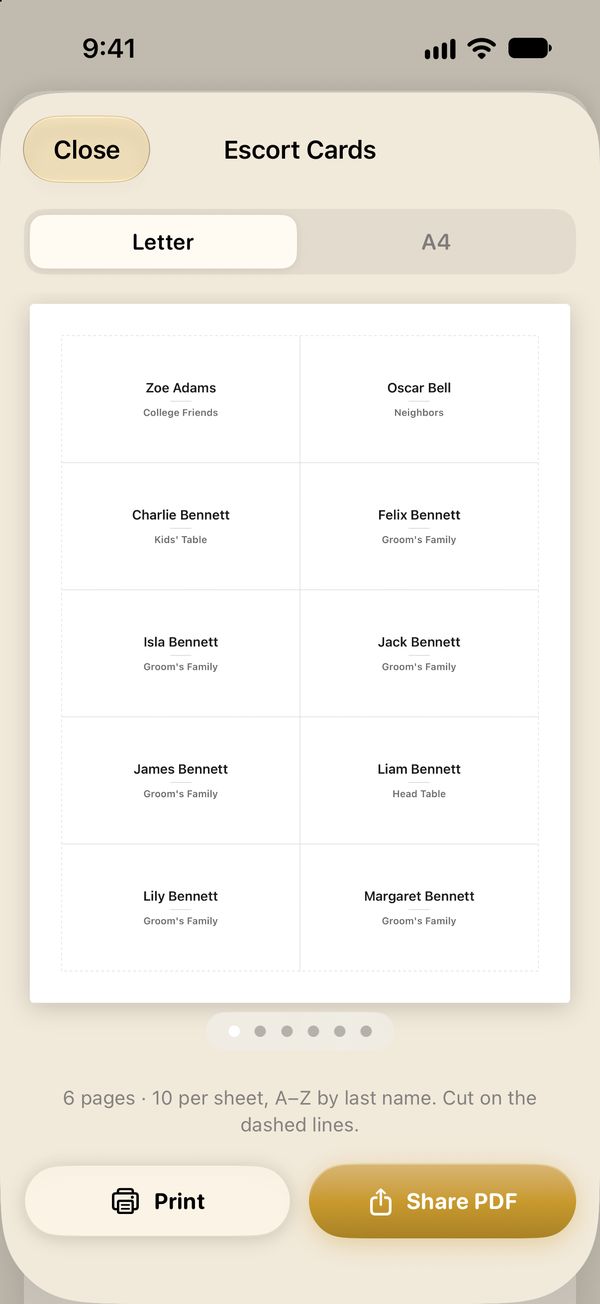
Tap Print & Share (the square with an arrow) in the top bar. Each printout opens a preview: choose Letter or A4, swipe through the pages, then tap Print, or Share PDF to save the file or send it to your venue.
Making place cards
Printing tips: the poster and the cards include seated guests only, so seat everyone first. For cards, use thicker paper (card stock) and keep the scale at 100% in the print dialog.
On the free plan you can preview every printout. Printing, PDFs and a floor plan image without the watermark are part of Premium.
Events and iCloud
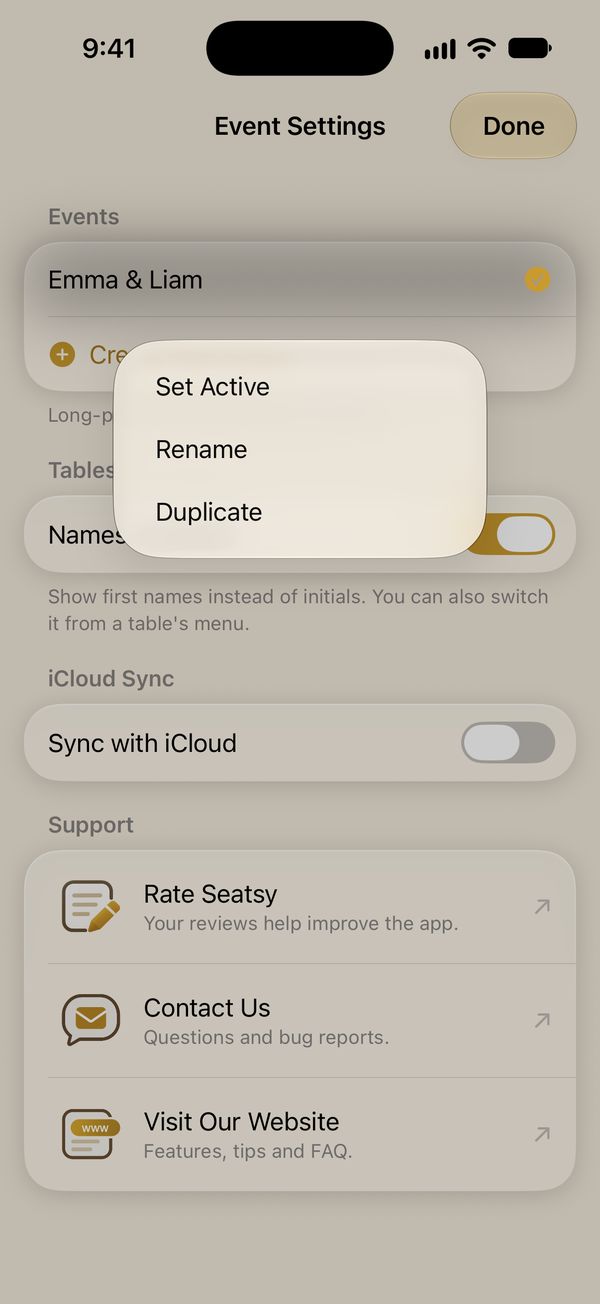
- Duplicate copies the tables, guests, seating and floor plan. It’s handy when two events share most guests, such as a rehearsal dinner and the wedding. It is part of Premium.
- Delete removes the event with its guests, tables and seating for good.
- Names on Seats shows first names on the seats instead of initials. You can also switch it from any table’s ••• menu.
iCloud sync
Switch on Sync with iCloud in Event Settings on each device. Your events then stay the same on every iPhone, iPad and Mac signed in to the same Apple ID.
Sharing with someone else: iCloud sync works within one Apple ID; it doesn’t share a plan with another person. To show the plan to a partner, planner or venue, send them a PDF from Print & Share or the guest list as CSV.
Troubleshooting
My event doesn’t show up on another device
- Check that both devices are signed in to iCloud with the same Apple ID and that iCloud Drive is on.
- Check that Sync with iCloud is on in Seatsy on both devices.
- Open Seatsy on both devices and give iCloud a minute.
- If Event Settings says iCloud not available, sign in to iCloud in your device’s Settings.
- If it says Update Seatsy to keep syncing, install the latest version of Seatsy on every device.
I can’t add more guests or events
The free plan stops at one event and 30 guests. Premium removes both limits.
A printout is empty or missing guests
The poster and the cards list seated guests only. Seat everyone, or use Fill Open Seats, then open the printout again.
I can’t drag a guest
Touch and hold for a moment before you start dragging. If it still doesn’t move, their seat is probably locked: look for the small lock, touch and hold the seat, and choose Unlock Seat.
I can’t move an area on the floor plan
Tap the area first to select it, then drag. An area that isn’t selected lets the room scroll instead.
My import put everything in one column
Your file probably uses semicolons between columns. Import the .xlsx file instead, or copy the cells in your spreadsheet and use Paste from Clipboard.
Imported guests didn’t get a seat
Guests are seated at the table whose name matches the Table column. Check the spelling, or switch on Create table if missing. A guest also stays in Unassigned if their table is already full.
Still stuck?
Email info@pipsapps.com with your device model, a short description and, if you can, a screenshot. Or use Contact Us in Event Settings.